
Historical context: This article introduced a feature in the China version of Violy in March 2021. The app versions and instructions below reflect that release.
Winter break is almost over. The children have had their fill of food and fun. As for all the instrument practice they were supposed to do… well…
Whether children have been practicing properly at home has always been one of parents’ biggest concerns.
To make sure their children spend enough time practicing, many parents sit beside them and supervise.
But when parents are not there, it is hard to tell whether their children have been practicing properly.
To help parents keep better track of their children’s practice time, we introduced the practice check-in feature.
Note: To use this feature at the time of its release, the app needed to be updated to the latest version: Android 6.0.2 or iOS 8.0.0.
Check In with the Sound of Your Instrument: Record Your Practice Time
Instrument Sound Recognition
Before you start practicing, tap the “Start Check-in” button. The app will begin listening.
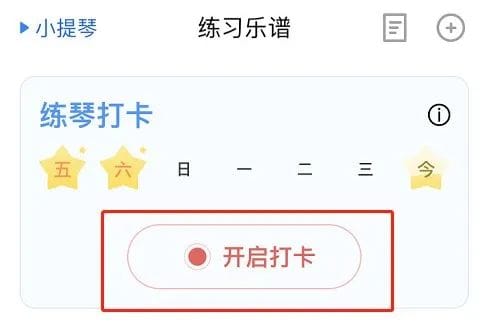
Once enabled, it automatically detects surrounding sounds. When it recognizes the sound of an instrument, it displays “Practicing” and automatically tracks your practice time.
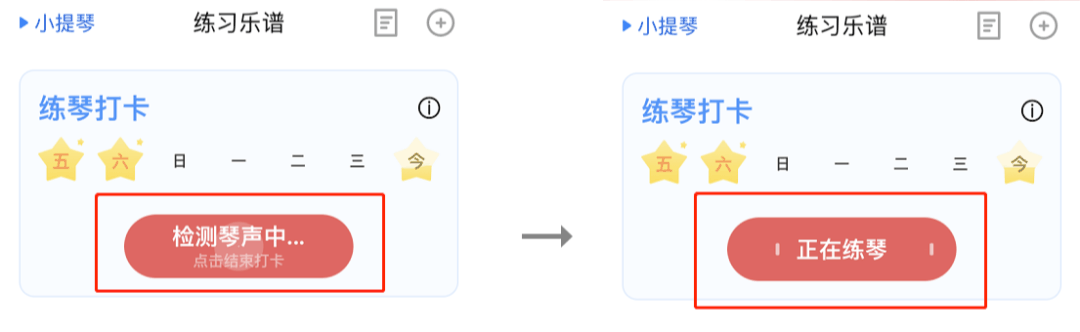
Check-in Statistics
Tap anywhere in the practice check-in module to open the check-in statistics page and view more detailed information.
To make check-ins more fun, we use “stars,” “moons,” and “suns” to represent practice time.
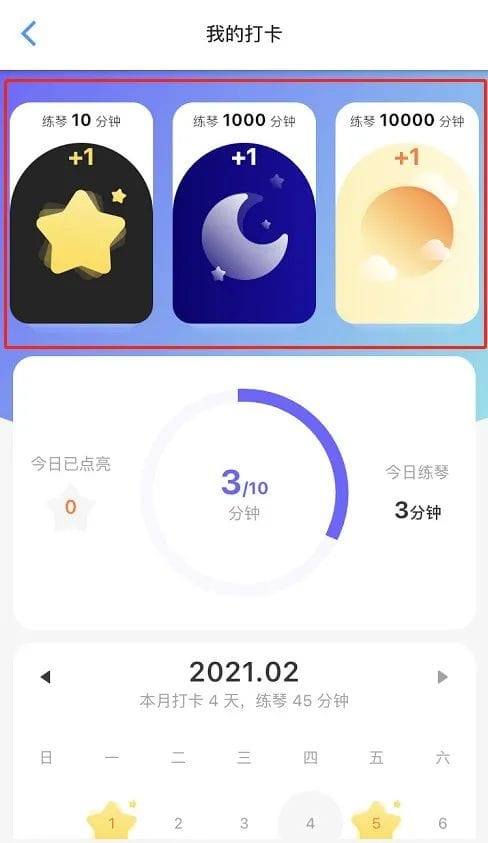
10 minutes of practice = 1 star; 100 stars = 1 moon; 10 moons = 1 sun.
On this page, you can also see today’s practice time, your progress toward your goal, and the total number of stars you have lit up.
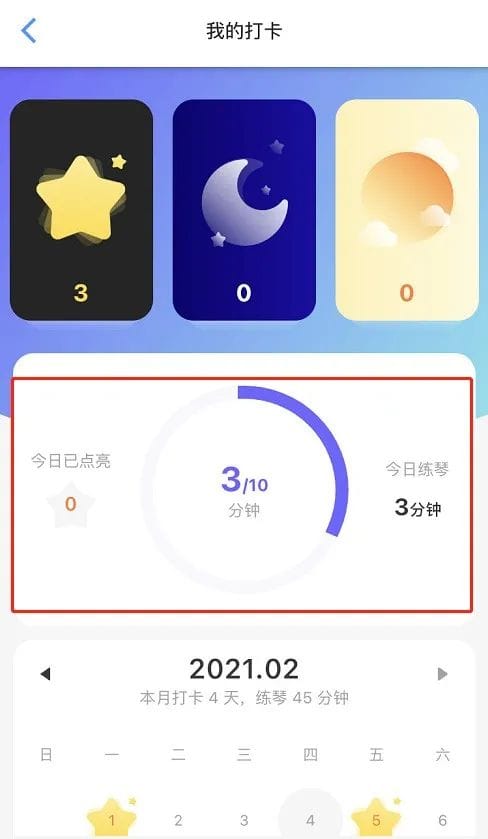
The calendar below lets you view your practice activity by date. Tap a date to see details such as your practice time and the number of pieces you practiced that day.
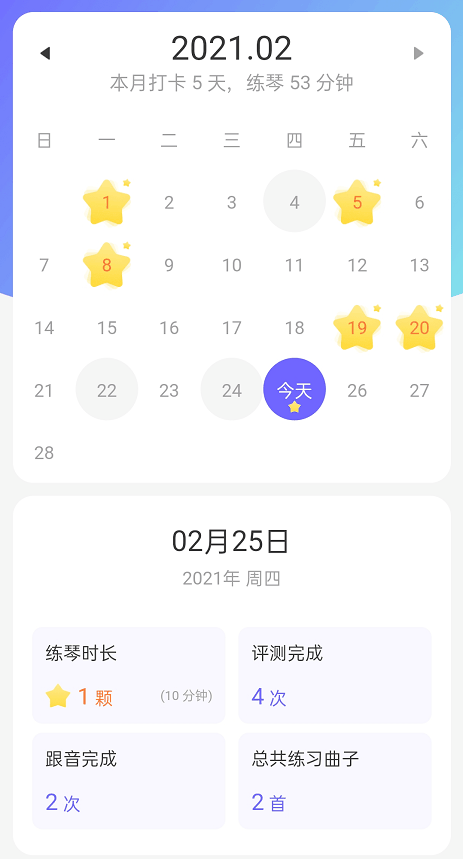
Gray means you practiced that day but did not reach your goal. A yellow star means you reached your goal for that day.
Things to Keep in Mind
- Update to the latest app version available at the time of this release.
- Once check-in is enabled, keep the screen on. Do not leave the app or return to your phone’s home screen, as this will affect the statistics.
- Before starting a check-in, make sure the instrument you are practicing matches the instrument you selected in the app.
The original article attributes two secrets of practicing to Itzhak Perlman: first, practice slowly in sections; second, practice every day.
It also attributes this advice to Perlman: do not practice too much each day, but do practice every day.
We hope the practice check-in feature will encourage young music students to practice more actively and make it easier for parents and teachers to understand how their practice is going.